Equipment

Wacom Intuos 4

Posted in Equipment, Image Processing on August 29th, 2010 by Krishnan V – Be the first to comment

I recently got hold of a pen tablet the Wacom Intuos 4 ( Medium Sized which is the PTK-640)

Definitely much better than using a mouse. It will take a little getting used to. For the ease of use, it will be worth it.

For those looking for one, even the smaller size (6×4 inch active area the PTK-440) will do just fine.

NEC LCD2690WUXi2 Wide Gamut Monitor

Posted in Equipment on October 13th, 2009 by Krishnan V – 1 Comment

My old CRT was beginning to give some problems so went looking for a replacement.

The NEC  LCD2690WUXi^2 is a 25.5 inch wide gamut monitor.

If you want to get hold of one you will need to get in touch with Enkay Technologies the authorised distributors for NEC in India. This monitor will have to be special ordered. Full marks to Sushant of Enkay,  Mumbai for excellent service :-)

ENKAY TECHNOLOGIES (INDIA) PVT LTD.
Enkay House, Bhima Vaitarna Complex,
Sir Ponkhanawala Road, Worli,
Mumbai – 400 030.
Tel.: 91-22-6626 2222

For calibration you will have to get hold of the Spectraview II software licence,  which is available in the US only ( see second from the bottom) . For downloading the Spectraview software itself,  click here.  I had to ask someone in the US to get hold of it for me. The reason why this software is recommended is,  that you are now able to  calibrate the LUT of the monitor directly. The earlier method was that the,  LUT of the video card was calibrated.

The best hardware for the colorimeter is the Gretag Eye One display 2. But, you can do with a Colorvision Spyder as well.

I have calibrated my monitor for 110cd/m^2 .

Why 110 ..take a read here > http://www.naturescapes.net/phpBB3/viewtopic.php?f=2&t=161473&p=1610198

Looks very very nice and ….I am a happy boy !

Nikon Auto Focus Settings

Posted in Equipment on August 5th, 2009 by Krishnan V – Be the first to comment

I recently answered someones question on Nikon AF settings on a wildlife photography related website. Thought it would be good to publish it here as well.

Well, different AF modes & settings are for different shooting situations. Following suggestions are with the intention of getting the fastest AF response by minimising on board computing. For wildlife you do need fast responses.

All Nikons from lowest to Flagship have same ability for AF settings. The more expensive the body its usually more AF points, coupled with more camera computing horsepower.  Here go the settings :

D40/D60 :
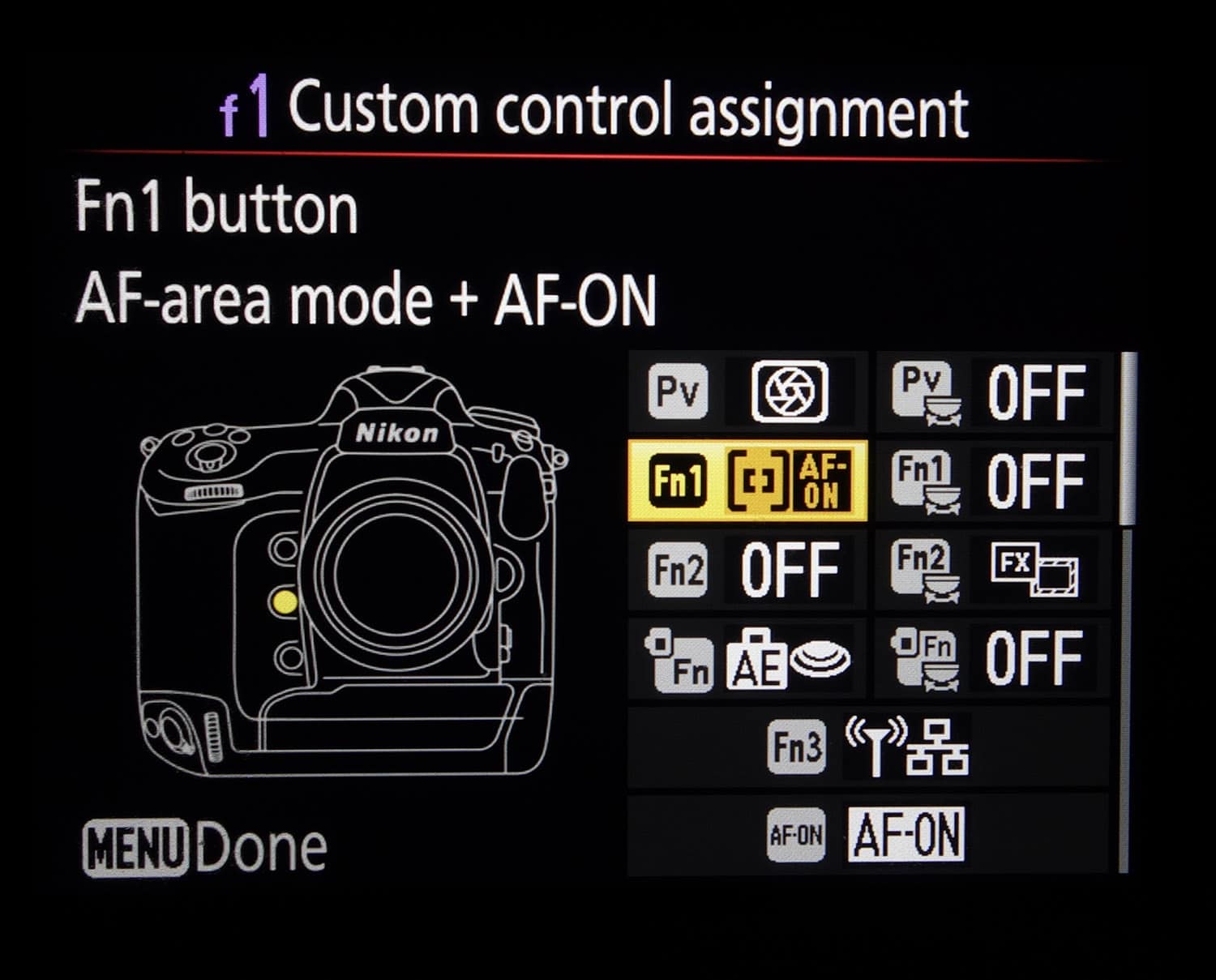
1. Set custom function 12 to AF-ON to, reprogram the AE-L/AF-L lock button to “AF-ON”,
2. Menu 02 Focus Mode to AF-C Continuous-servo AF
3. Menu 03 AF Area Mode to Single Area

D80 :
1. Set custom function 18 to AF-ON to, reprogram the AE-L/AF-L lock button to “AF-ON”
2. Menu 02 AF Area Mode to Single Area
3. Menu 03 Center AF area to Normal Zone
4. AF Button ( Near top LCD) + Rear Dial set to an Auto Focus Mode , set it to AF-C or AF -Continuous

D5000 : ( Now has AF module Multi CAM 1000 same as used to be on the D200 ! )
1. Custom Function f2 can reprogram the AE-L/AF-L lock button to “AF-ON”
2. Menu a1 AF-area mode to Single Point
3. Set AF-C mode via the Info button screen.
{You set these by pressing either the top or rear INFO [i] button to display the INFO screen. Once the info screen is displayed, press the rear INFO [i] button to change the settings.

Click over to the right side of the screen, and about halfway up you’ll see either AF-A, AF-S or AF-C displayed. Select it, and press OK to set them. }

D90 – ( Now has AF module Multi CAM 1000 same as used to be on the D200 ! )
1. Custom Function f4 can reprogram the AE-L/AF-L lock button to “AF-ON”
2. Menu a1 AF Area Mode to Single Point
3. AF Button ( Near Top LCD ) + Rear Dial set to an Auto Focus Mode , set it to AF-C or AF -Continuous

D200:
1. Set custom function a6 AF Activation to AF-ON Only ( Default is both Shutter & AF-ON)
2. a1 AF-C Mode Priority to FPS Rate
3. a5 Lock-on -> Set to Short or off
4. AF-Area Switch (rear) set to Single Area ( Lowest setting) . Flight shots plain backround set to Dynamic Area ( Second from bottom )
5. AF- Mode Switch ( Front & Side of camera) to C or AF-C mode.

D300/D3/D3x -
1. Set custom function a5 AF Activation to AF-ON Only ( Default is both Shutter & AF-ON)
2. Set AF mode switch ( Rear switch to Middle or Dynamic Area for moving subjects, otherwise Set to Single Area Bottom-most setting for slow or static subjects)
3. AF switch in front to “C” or AF-Continuous.
4. a1 AF-C priority selection -> release
5. a3 Dynamic AF area -> 21 points I use 9 ( Lesser points = more responsive cause of less computing)
6. a4 Focus tracking with lock-on -> Set to Short or off

Raw 12 bits or you will get a substantial shutter delay in 14 bits (at least in D300) . 14 bits no problem on D3

Set AF Mode to Single Point makes AF more responsive since camera does less computing. Its good to practice tracking the subject with focus reticle lined up on target while pressing the AF On Button ( On models other than D300 you may need to pump the AF On button. On the D3/ D300 I don’t seem to need to pump to acquire focus) . On the D3 / D300 there is enough computing power to keep the camera in Dynamic area most times. I switch to Single area especially when there is high clutter which can confuse the AF.

AF-C because the shutter wont wait for AF confirmation and will work. In AF-S the shutter will fire only if the camera feels the focus is acquired which might lead to a missed shot.

Ideally focus at a distance close to target and then when subject approaches similar distance press AF-ON and keep it pressed while shooting. This way the camera and lens has to work least and focus is acquired fastest and with minimum error even on some slower focusing lenses. Takes a little practice but doable.

On the Nikon system I personally like to move focus to AF-ON. Decoupling AF from shutter conserves battery as well since the the VR also kicks in with the shutter half press. So why waste batt juice on VR when the intention is AF ? And the Nikon VR takes a half a second to stabilise, so factor that in for the very first shot in the sequence while you shoot.

1- Just press AF-ON to focus; (thumb recommended)
2- Keep pressing while you want to continuous focus and shoot at will.
3- If you want to recompose, just lift your thumb and the focus will lock ->, then recompose and shoot using shutter only … remember when recomposing, you have locked the focus by removing your thumb.. so its ok to shift the camera to recompose, but remember NOT to change the distance from camera to the locked focus point, side to side or up and down to recompose is ok…
4- For manual focus dont touch the AF-ON button. When in low contrast scene/ very low light / too much clutter/ AF hunts, Switch to Manual Focus.

The Blue Wall White Balance Test

Posted in Equipment on March 17th, 2009 by Krishnan V – 3 Comments

This is why manual White Balance on the camera helps at times.

Both  identically exposed Nikon D3, ISO200, 1/250th @ F4. Out of the camera jpeg, resized with no other processing.

First shot with Auto White Balance or Auto WB. Since I was shooting in relative shade. I would estimate the WB ( what I can make out with my eyes)  to be between  6000-7000K if , I should put a value on the Auto WB.

20090129_1033-0

Second shot with White Balance manually set to 4000K

20090129_1033-1

Note the histograms in both these shots. The 4000K setting moved the red down while keeping blue to the right thus giving us more saturation on the blue. Typically, the Blue channel is notorious to get underexposed.

I wanted a velvia type, well  saturated blue look and hence,  set an extreme low value like 4000K.

The D3 has wonderful WB on Auto.  I have no complaints. But, its good to know how one can use the tools at hand when you have a particular “rendering intent”.

Summary

To add Blue and subtract Red – Reduce WB values

To add Red and subtract Blue – Increase WB values

Use manual WB to get more done “In Camera”

Big is Better ! – The 40inch LCD…..

Posted in Equipment on November 12th, 2008 by Krishnan V – 1 Comment

 A few months back, I had gone over to a friends place in Delhi.  He is a photography buff as well and, he asked me to get a few images on a USB stick. I had just got back from Tadoba. So  I promptly dumped a bunch of straight out of the camera jpegs into a flash drive and, went over to his place.

He plugged in the flash drive to his Sony 40 inch TV and ran a slideshow.  My jaw just dropped at what I saw. The big screen makes such a huge difference that, you have to see it, to believe it.

The pictures, pretty much jumped out of the screen and,  it seemed to me that I was back in the “transparency days” ! The Sony “X” series can also be colour calibrated and used as an external monitor as well. I am not saying that this is like an Eizo graphics monitor  but,  it is a 10 bit panel and the TV runs a customised embedded linux operating system.

You could try it out at any of the Sony showrooms I would think.  So go on try it, I would interested to hear if it impressed you !